BAM – An App in the Menu Bar Managing Your Apps

BAM
Close the apps you are done with. BAM sits in your menu bar and quits them on demand, after you stop using them, or on a schedule.
Requires macOS 14 Sonoma or later. Universal — Apple silicon and Intel.
Free. No trial, no licence key, no account, no subscription, but donations are welcome!
Installing it
BAM is signed and notarised through the Apple Developer Program, so it installs like any other Mac app. There is nothing to approve and no warning to click past.
- Open the downloaded disk image.
- Drag BAM onto the Applications folder in the window that appears.
- Open your Applications folder and double-click BAM. The first time, macOS confirms that you meant to open an app you downloaded — click Open.
BAM has no window. Once it opens, look for the fist icon in the top-right of your menu bar. Click it for the app list, or right-click it for Settings and About. If you were expecting something to appear on screen, that is the whole app.
Say yes to notifications. BAM asks once, on first launch. It uses them to warn you before it quits anything, which is the only thing standing between you and an app closing while you were still reading.
To uninstall, open Settings › Advanced and click Remove BAM. Dragging BAM to the Trash is not enough on its own — any Wake or Power On times you set are held by macOS and would still happen after the app was gone. Remove BAM cancels those, clears its settings and moves itself to the Trash. If you have already deleted BAM, run Uninstall BAM.command in the disk image instead.
A look at BAM
BAM lives in your menu bar and closes apps for you — on demand, after you stop using them, or on a schedule.
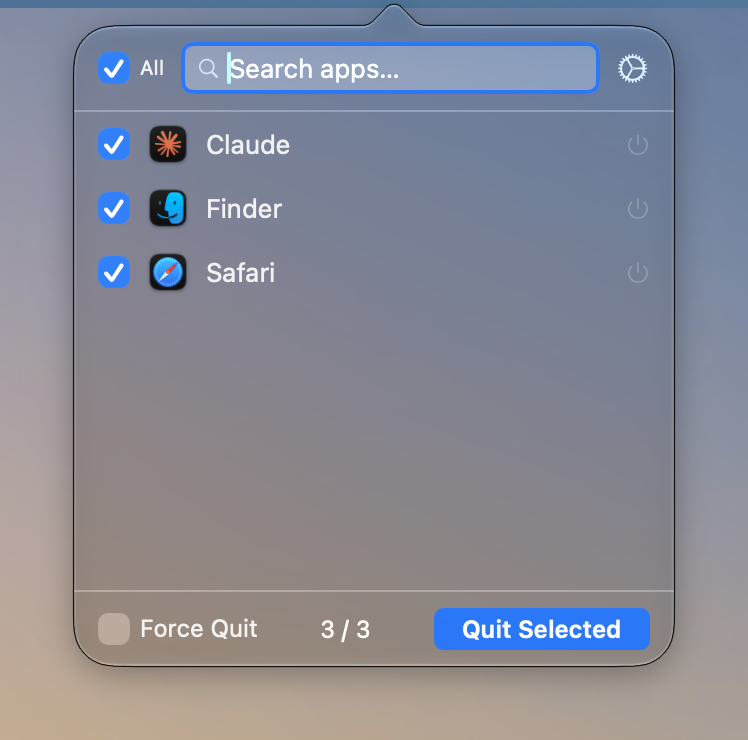
The menu bar list
- Click the fist icon in your menu bar to open it
- See every app that’s open right now
- Tick the ones you want, then press Quit Selected to close them all at once
- The counter shows how many you’ve picked
- Search to find one app fast, or hover a row and click the power symbol to quit just that app
- Tick Force Quit for apps that are frozen — the power symbols turn red as a warning
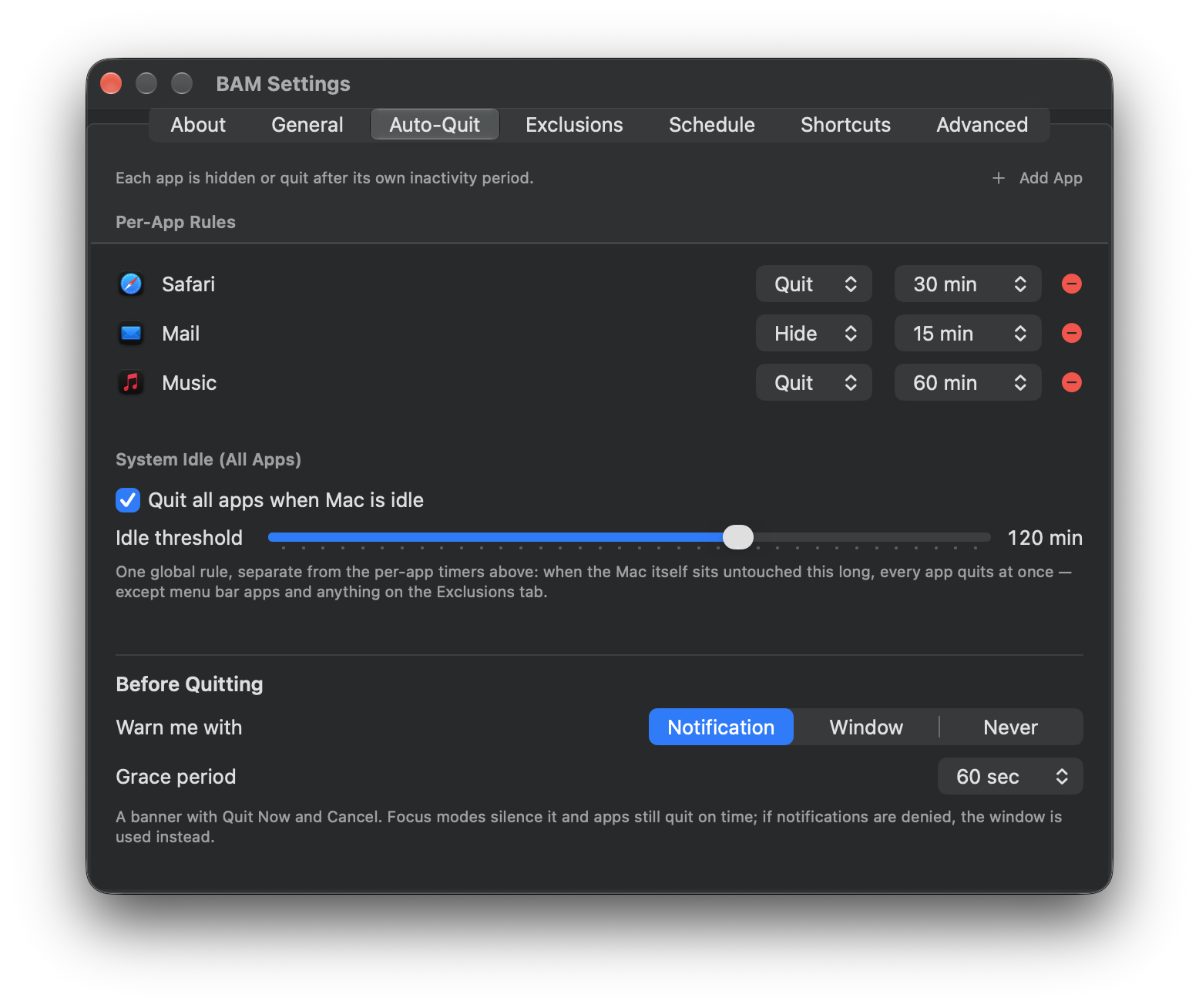
Auto-Quit
- Set rules that close apps for you once you stop using them
- For each app choose Hide to tuck it away, or Quit to close it completely
- Pick how long BAM waits first — say 30 minutes for Safari, 15 for Mail
- Add a rule with Add App, remove one with the red minus
- Switch on Quit all apps when Mac is idle and drag the slider to set how long you have to be away
- Under Before Quitting, pick whether the warning arrives as a notification or a window — or turn it off — and how long the grace period lasts
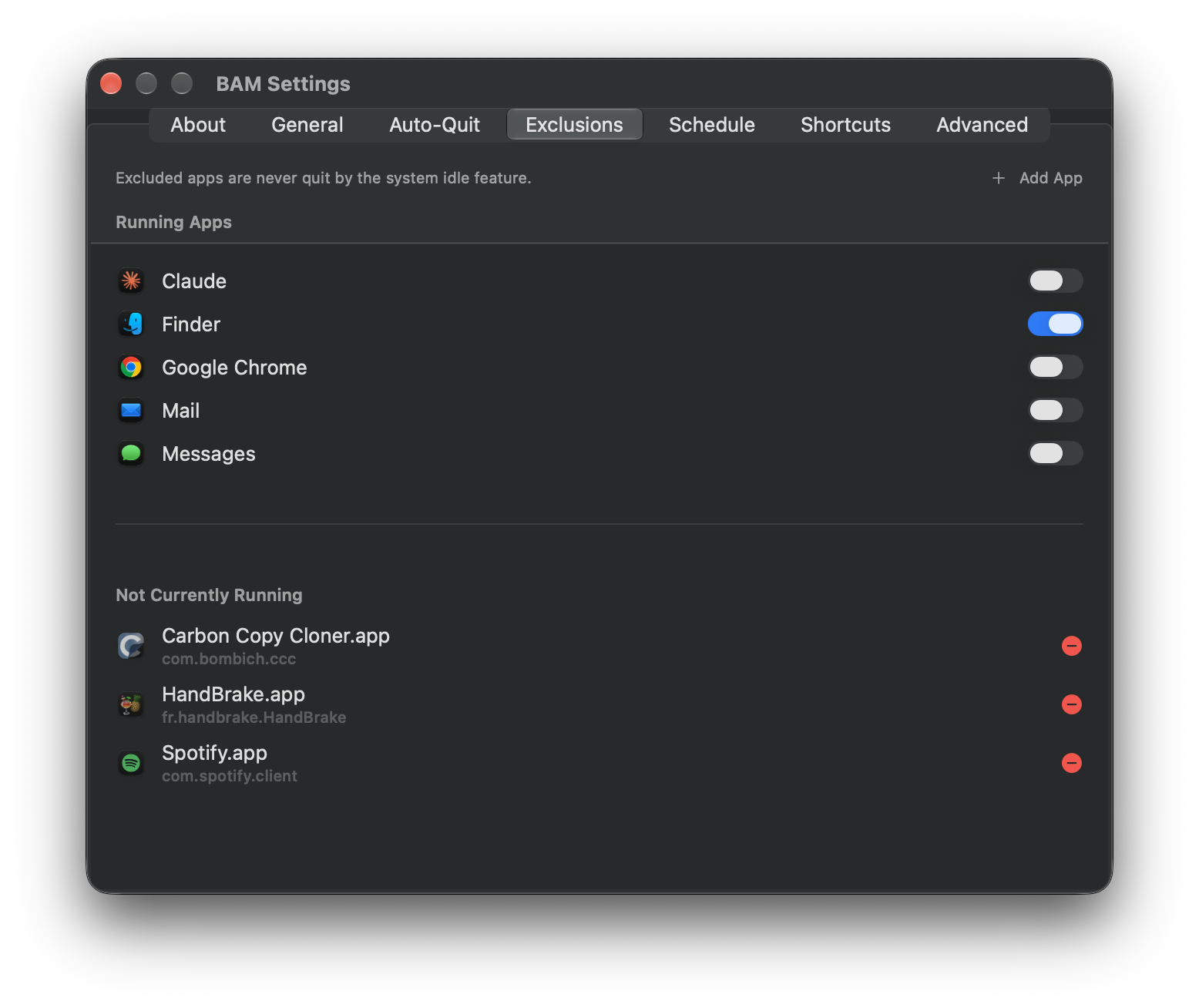
Exclusions
- Build a “leave these alone” list of apps BAM will never close on its own
- Flip the switch beside any open app to protect it
- Apps you protected that aren’t running right now get their own list underneath, with their real icon and name
- Add App picks from your Applications folder, so an app can be protected before it has ever been opened
- Remove one with the red minus
- This only affects the idle feature — your own Auto-Quit rules still run
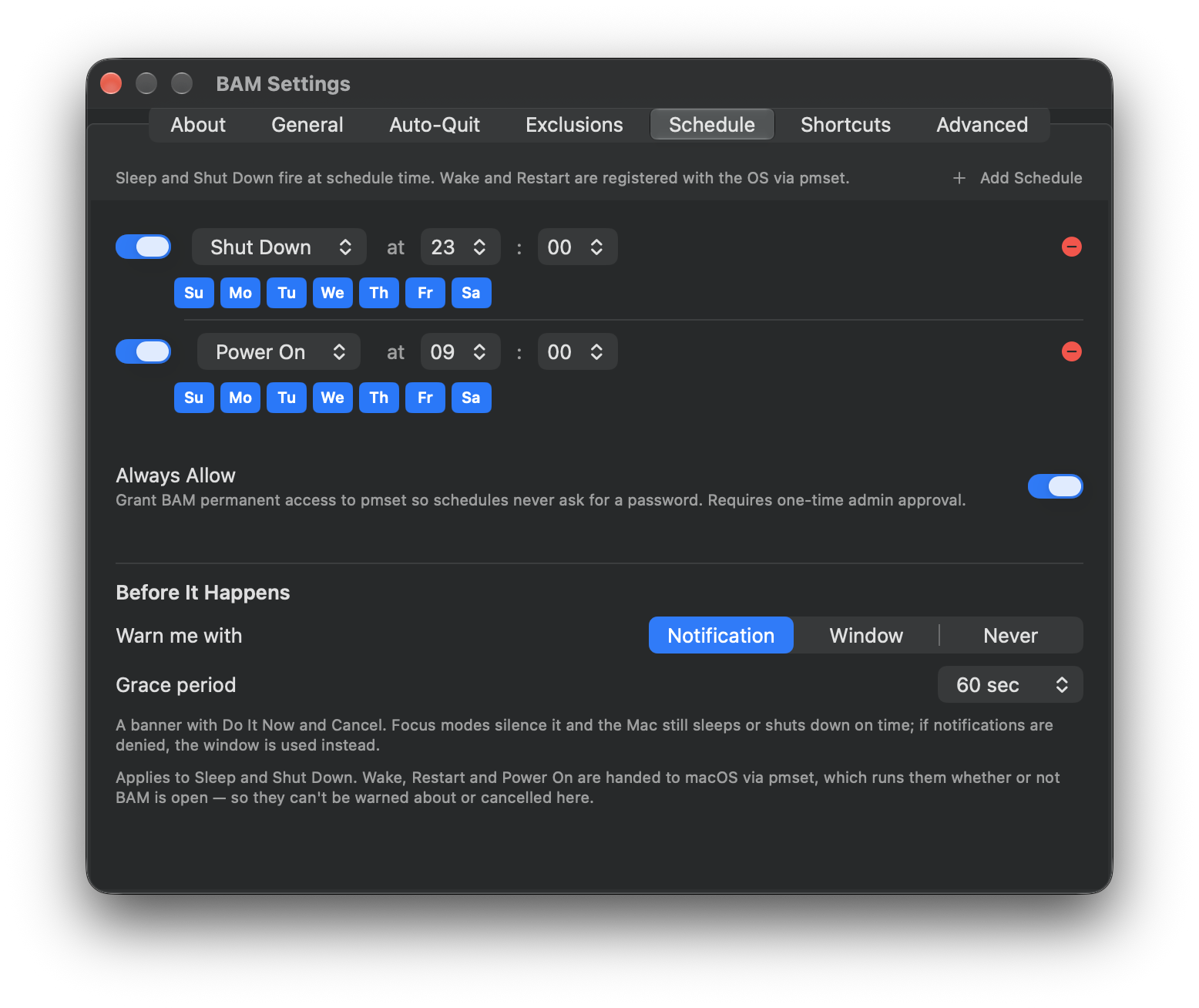
Schedules
- Tell your Mac to shut down, sleep, restart, or wake up at times you choose
- Set the exact hour and minute
- Pick which days it happens — blue days are on, grey days are off
- The switch on the left turns a schedule off without deleting it
- Always Allow stops your Mac asking for a password every time a schedule runs
- Under Before It Happens, choose whether the warning arrives as a notification or a window — or turn it off — and how long you get to cancel
- Only Sleep and Shut Down can be warned about. Wake, Restart and Power On are handed to macOS, which runs them whether or not BAM is open
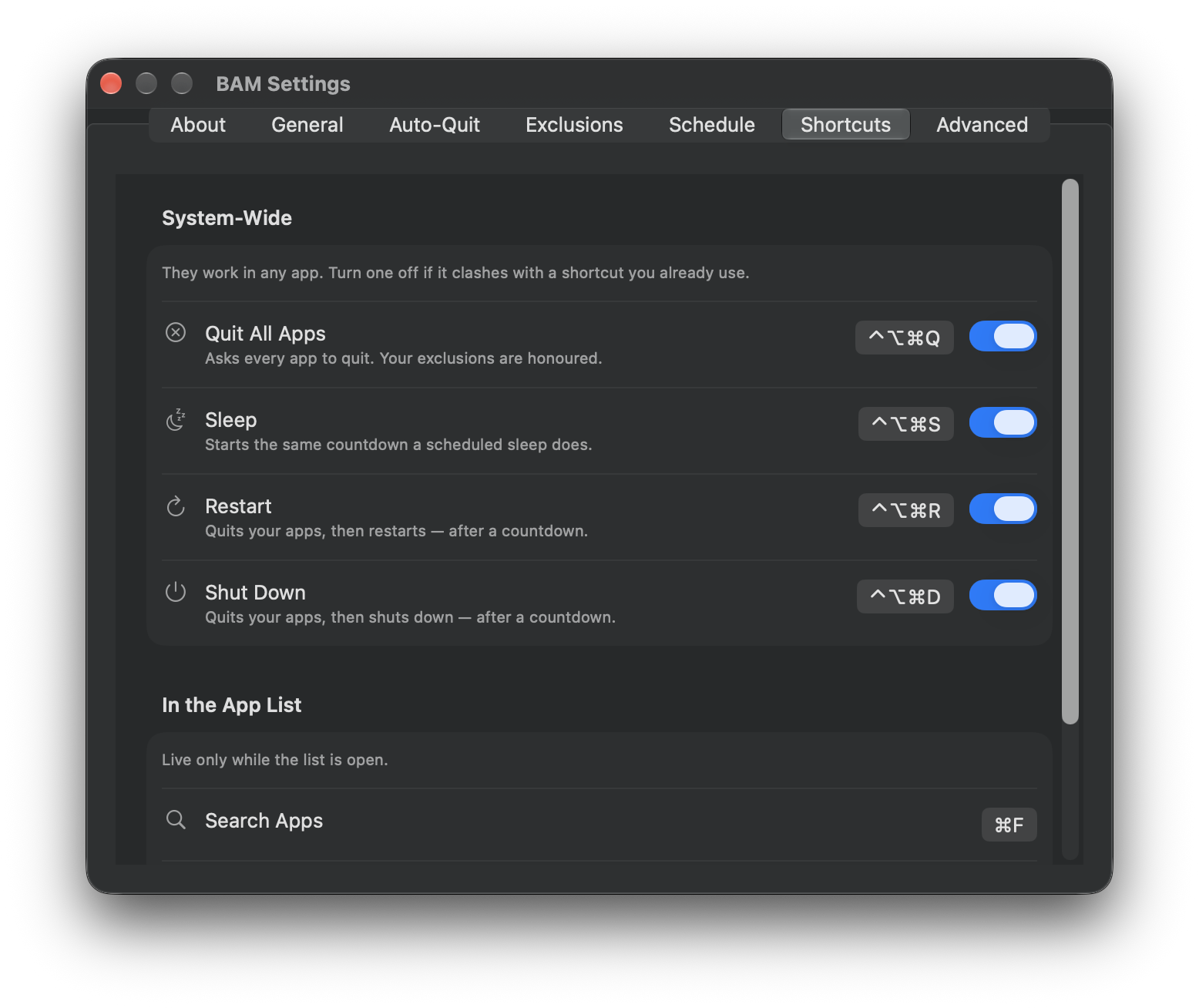
Shortcuts
- Four shortcuts that work in any app, without opening BAM at all — quit everything, sleep, restart, shut down
- Sleep, Restart and Shut Down each start the same countdown a schedule does, so a mistyped key costs you one keystroke
- Quit All Apps asks each app to quit rather than forcing it, and honours your Exclusions
- Turn any of them off with the switch if it clashes with a shortcut you already use
- If macOS will not give BAM a combination, the row says so, instead of leaving you a key that does nothing
- Underneath, the ones that work while the list is open: ⌘F to search, ⇧⌘A to tick or untick everything, ⌘↩ to quit what is ticked
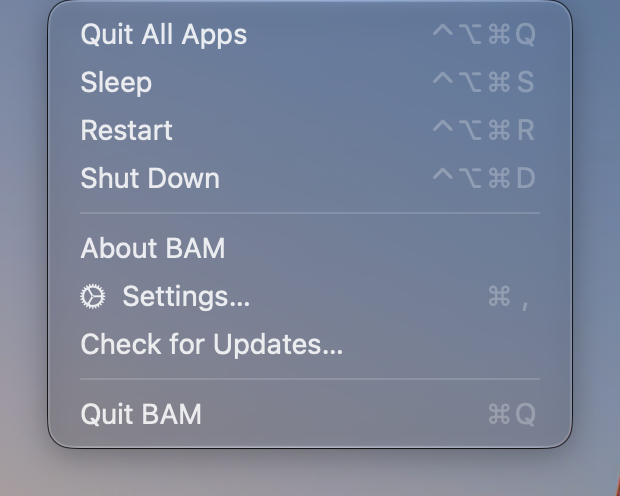
The menu bar menu
- Right-click the fist for the same four commands, with their shortcuts printed beside them
- Switch a shortcut off and its key disappears from here too — the menu never advertises a key that is not listening
- Settings, About and Check for Updates live in the same place
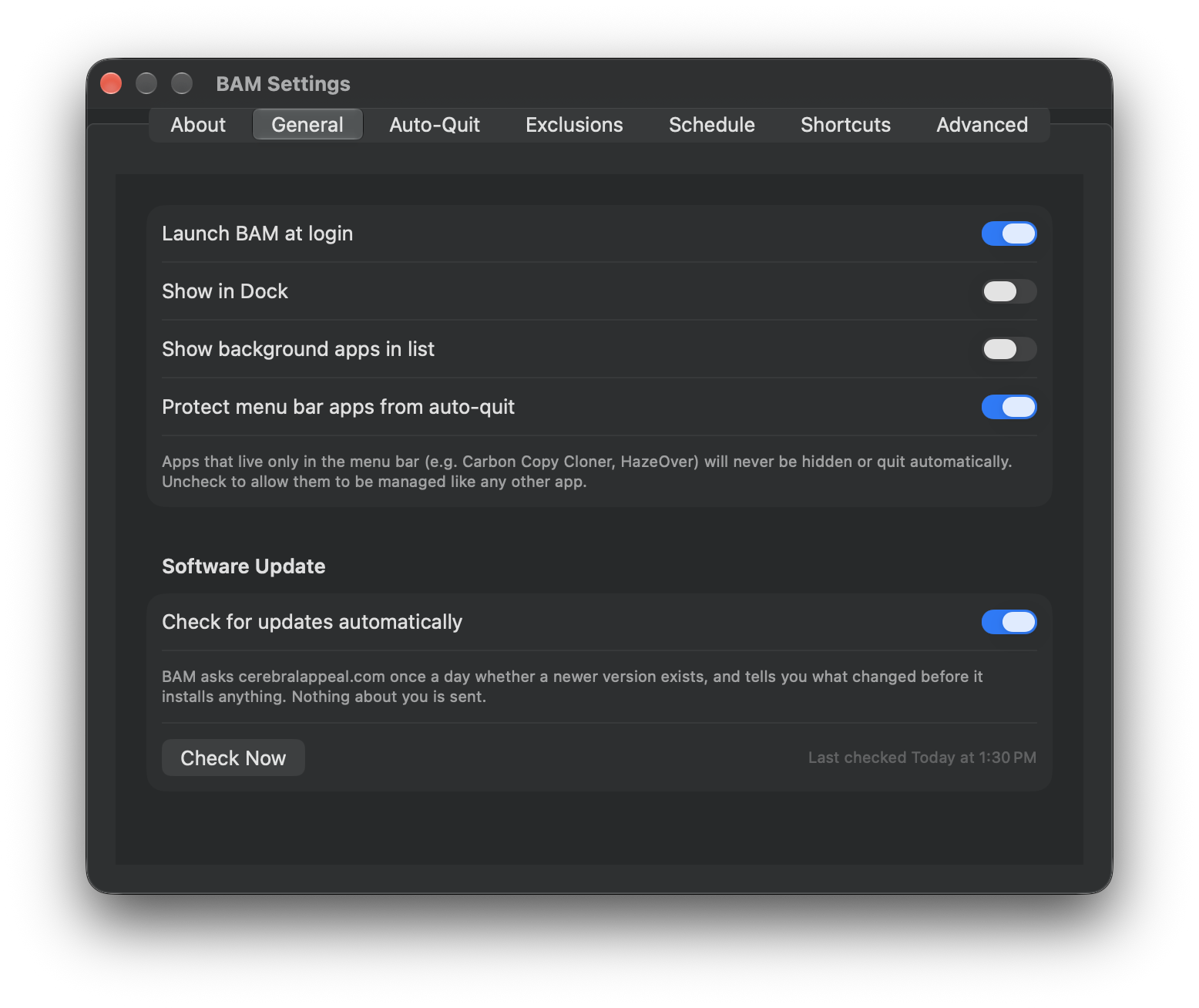
General
- Have BAM start automatically whenever you turn on your Mac
- Show or hide BAM’s icon in the Dock
- Choose how the Dock icon looks: Auto to match your Mac’s light or dark setting, or lock it to Dark or Light
- Decide whether behind-the-scenes helper apps appear in BAM’s list
- Protect small menu bar apps so BAM never closes them by accident
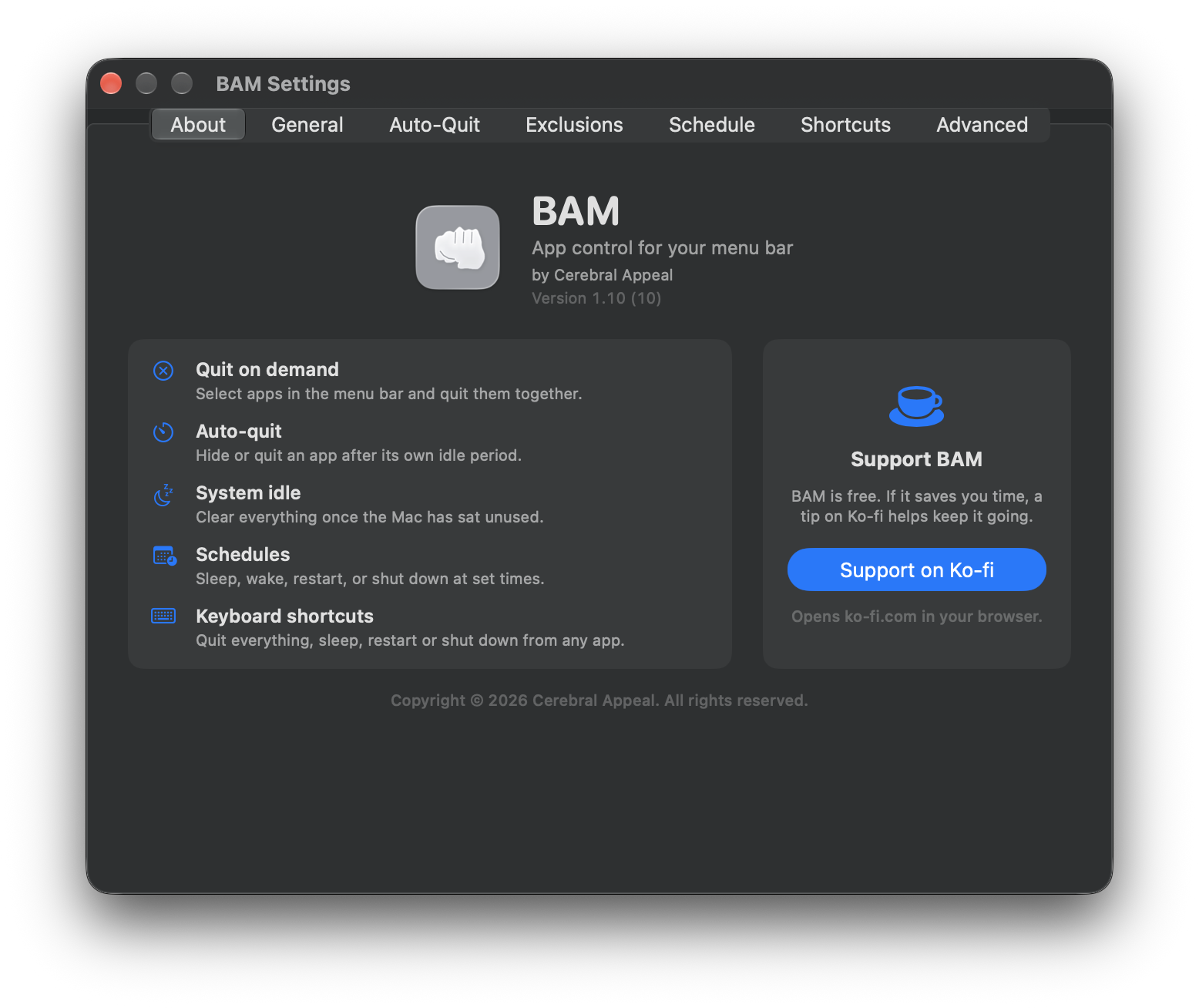
About
- Shows which version of BAM you’re running
- Sums up the five main things the app does
- Support on Ko-fi opens BAM’s tip page in your browser, if it has saved you some time. BAM is free either way — nothing in the app depends on it
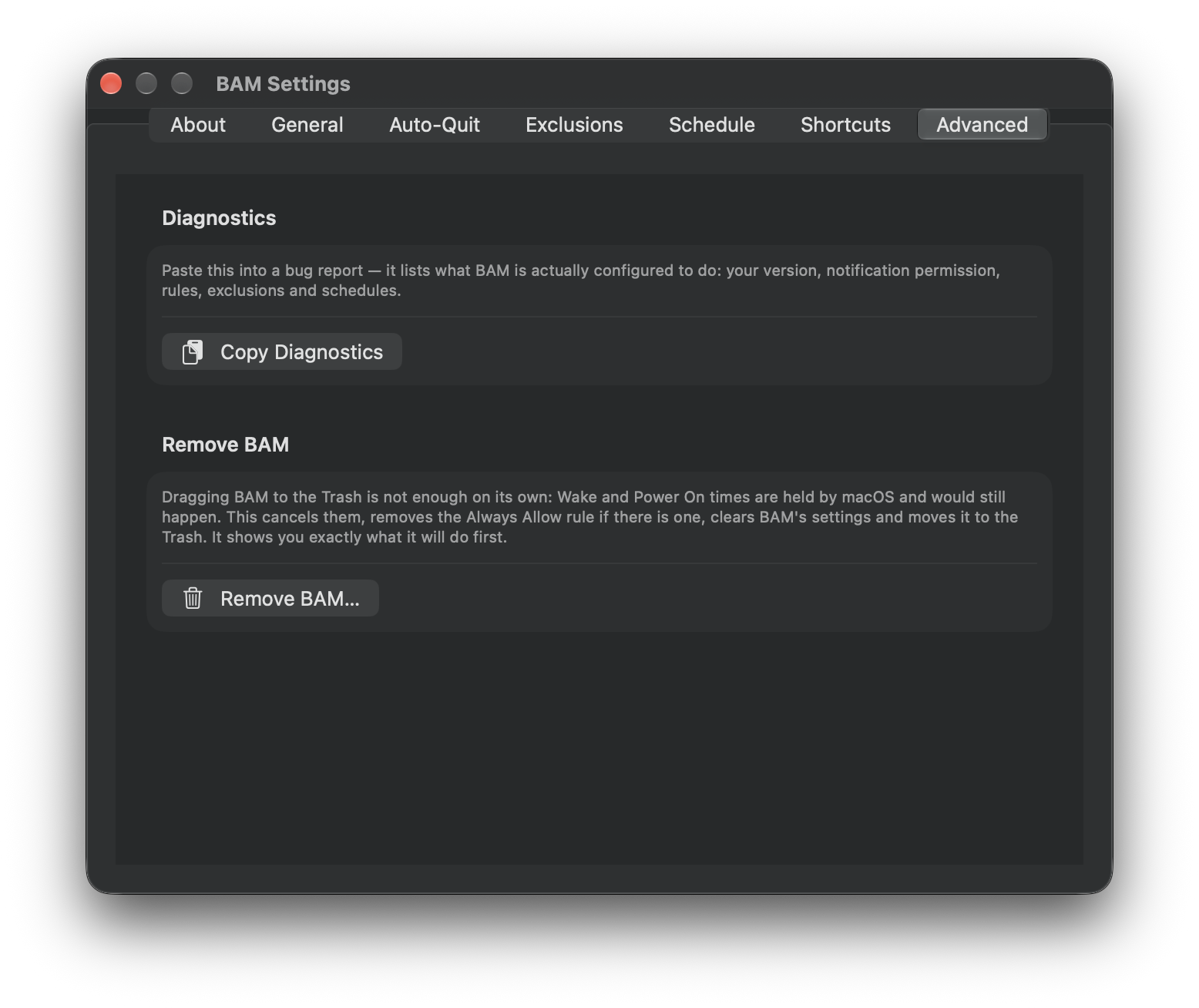
Advanced
- Copy Diagnostics puts a summary of your setup on the clipboard — your version, notification permission, rules, exclusions and schedules — ready to paste into a bug report
- Remove BAM uninstalls it properly: it cancels any Wake or Power On times you set, removes the Always Allow rule, clears BAM’s settings and moves the app to the Trash
- It shows you exactly what it will do before it does any of it
What’s new in BAM
Version 1.10
build 10
Auto-Quit now waits until you have actually stopped. Two bugs made BAM think you had walked away when you had not. An app’s idle time was counted from when you last switched to it, so an app you had been working in for an hour looked an hour idle the moment you switched away, and its rule hid or quit it on the spot. And scrolling, clicking and dragging did not count as activity at all, so reading a long page with the trackpad looked like being away from the Mac — for long enough, and the idle sweep closed everything. An app’s clock now starts when you leave it, and any input counts.
Added
- Settings › Advanced, a new tab for the two tools that take BAM apart rather than set it up: Copy Diagnostics, which puts a summary of your settings on the clipboard for a bug report, and Remove BAM, which uninstalls it properly. Both used to sit at the bottom of About.
- A Support BAM card on the About tab. Its button opens BAM’s Ko-fi page in your browser, where you can leave a tip if BAM saves you time. BAM stays free, and nothing in the app depends on it.
Changed
- About is now the first tab in Settings. Settings itself still opens on General.
- The Settings window is a little wider, so seven tabs fit without running edge to edge.
Fixed
- Auto-Quit rules no longer fire the moment you switch away from an app. Its idle time was counted from when it last came to the front, so an app you had used for an hour read as an hour idle as soon as you left it. It now counts from when you leave.
- Scrolling, clicking and dragging now count as using your Mac. Only mouse movement and key presses did, so reading with a trackpad could look like being away, and Quit all apps when Mac is idle could close everything while you were still reading.
- Changing schedules in quick succession could leave behind a Wake or Restart BAM had lost track of, so it could neither change nor cancel it. Two updates to macOS’s power schedule could overlap; they now run one at a time.
- Add Schedule no longer creates a second Shut Down. A new row always started as Shut Down, even when the list already had one; it now starts as Sleep instead.
Version 1.09
build 9
BAM has keyboard shortcuts. Four of them work anywhere, whatever app you are in: quit everything you have open, or put the Mac to sleep, restart it, or shut it down. They are for the moment you have finished for the day and your hands are still on the keyboard — which is exactly when reaching for a menu bar icon is most annoying. Sleep, Restart and Shut Down do not happen the instant you press them: each starts the same countdown a schedule does, so a mistyped key costs you one keystroke rather than an afternoon. Quit All Apps asks each app to quit rather than forcing it, so anything holding unsaved work still stops and asks you, and your Exclusions are honoured.
Added
- ⌃⌥⌘Q — Quit All Apps. Everything except the apps you have excluded.
- ⌃⌥⌘S — Sleep, ⌃⌥⌘R — Restart and ⌃⌥⌘D — Shut Down, each after the usual countdown, which you can cancel.
- Settings › Shortcuts, a new tab listing every shortcut, with a switch for each of the four system-wide ones. Turn one off if it clashes with a shortcut you already use. If macOS will not hand BAM a combination at all, the row says so, rather than leaving you with a key that quietly does nothing.
- Quit All Apps, Sleep, Restart and Shut Down in the menu bar menu, above About, with their shortcuts shown beside them. Switch one off and its key disappears from the menu, so the menu never advertises a shortcut that is not listening.
- Shortcuts inside the app list: ⌘F to jump to the search field, ⇧⌘A to tick or untick everything, ⌘↩ to quit whatever is ticked.
Changed
- The app list now closes once you quit from it. Quit Selected did its job and then left the list sitting open over the work you had just cleared space for.
- The search field is ready to type in the moment the list opens, and empties itself when the list closes, so you never come back to yesterday’s filter still narrowing the list.
Fixed
- With Show in Dock switched on, the app menu’s Settings… (⌘,) opened an empty window. It now opens BAM’s Settings, the same window the menu bar icon opens.
- That same menu’s About BAM showed the standard macOS panel instead of BAM’s own About tab, so the two menus disagreed about what About meant.
Version 1.08
build 8
BAM updates itself now. It asks cerebralappeal.com once a day whether a newer version exists, shows you what changed, and installs it if you say yes — so you no longer find out months later that a fix you needed shipped in August. Nothing about you or your Mac is sent: the check is a plain request for a file that is the same for everyone. An update is refused unless it carries the right signature, so a version served by anyone else — including from a compromised web host — will not install.
Added
- Check for Updates… in the menu bar menu, next to Settings.
- Settings › General › Software Update, with a switch for the daily check and a Check Now button. Turning the switch off stops BAM contacting the site at all.
Note
- This is the first version that can update itself. Copies of 1.07 and earlier have no updater in them, so this is the last time you will need to come back here by hand for a new version.
Version 1.07
build 7
BAM is now free. There is no trial, nothing to buy and no key to enter. If you already bought a licence, thank you — nothing you do is any different, and the key sitting in your settings is simply ignored from here on.
Fixed
- A scheduled Shut Down is no longer missed when the Mac falls asleep first. Shut Down and Sleep are performed by BAM itself, and nothing in BAM runs while the Mac is asleep — so a Mac that dozed off in the minutes beforehand slept straight through its own schedule and was still on in the morning. BAM now asks macOS to wake the Mac shortly before each Shut Down, and holds off idle sleep until the moment has passed. It was easiest to hit on Macs set to sleep after only a minute or two of idle. Closing the lid or choosing Sleep yourself still works exactly as before.
- Wake and Power On no longer lapse after they fire. BAM hands those to macOS one occurrence at a time, and re-registered the next one only when it was relaunched or you edited a schedule. A Mac left running for days quietly ran out of schedule — the classic symptom being a Power On that worked for a week and then simply stopped. BAM now re-checks on wake and hourly, and does nothing at all when the schedule is already correct, so it never asks for your password just to confirm that.
Changed
- The licence section is gone from Settings › About, along with the trial countdown, Buy BAM and Enter Licence. Auto-quit rules, the idle sweep and schedules are simply on, permanently.
Version 1.06
build 6
BAM is now signed and notarised by Apple. No more “Apple cannot verify this app” — it installs like anything else, with nothing to approve. Everything below comes with it.
Fixed
- Scheduled Shut Down no longer closes apps you protected. It ignored the Exclusions list and the menu bar protection entirely. That mattered most when something else then blocked the shut down: you were left with a Mac still on and every app gone.
- Force Quit asks first. Every app in the list is ticked by default and force quitting skips the save dialog, so one mis-click could destroy unsaved work everywhere at once. The ordinary quit is unchanged — apps can still object for themselves.
- Turning notifications on takes effect immediately. BAM checked the permission once at launch, so granting it afterwards did nothing until you relaunched.
- The countdown window shows over full-screen apps. Watching something full-screen meant no warning at all — on the very style people pick because a Focus cannot silence it.
- Schedules work outside the United States. Wake and Power On times were written using your Mac’s own calendar and digits. On a Buddhist or Japanese calendar the year came out as 69 or 08, and in some locales the whole date did — none of which the power scheduler accepts, so those schedules silently never registered.
- BAM only cancels power events it created. It used to recognise its own entries by their owner, which every event made with the
pmsetcommand shares — so a Wake you had set yourself could be cancelled on first launch.
Added
- Remove BAM. Settings › About › Remove BAM… cancels the power events BAM gave macOS, removes the passwordless rule if you ever turned on Always Allow, clears its settings and moves itself to the Trash. Dragging BAM to the Trash was never enough on its own: Wake and Power On times belong to macOS and outlive the app, so a deleted copy could still switch your Mac on. The disk image also carries Uninstall BAM.command for anyone who already deleted it.
- Always Allow, from the password prompt. When BAM explains why macOS is about to ask for your password, there is now a checkbox — Always allow, don’t ask for my password again. Ticking it sets everything up in that same authorisation rather than making you enter your password twice.
- A warning when notifications are switched off for BAM. Choosing Notification while macOS is refusing them used to give you a window instead, with nothing saying why. Both tabs now say so, with a button that opens Notification settings.
Changed
- Schedules warn the same way Auto-Quit does. Both now start as Notification at 60 seconds. If you already chose a style, your choice is untouched.
- The select-all checkbox in the menu bar list is labelled All, and the rules, exclusions and schedule lists no longer draw a hairline under every row.
Version 1.05
build 5
BAM becomes a paid app, with a 30-day trial. If you have been testing BAM, ask for a tester licence before you update — otherwise this build starts a trial clock on you.
Added
- A 30-day trial. Everything works, with no restrictions and nothing to enter. The countdown is in Settings › About, along with a Buy BAM button and somewhere to paste a licence key.
- One-time licences. Buy once, keep it. There is no subscription and no account. Your key is checked on your own Mac against a signature, so BAM never contacts a server — licensing keeps working offline, and does not depend on any service staying alive.
What happens when the trial ends
- Quitting apps by hand from the menu bar keeps working, permanently. That was never part of the trial and it does not expire.
- Auto-quit rules and the idle sweep stop.
- Schedules stop, and any sleep or wake BAM had registered with macOS is cancelled. That last part is deliberate: those entries belong to macOS and fire whether or not BAM is running, or even installed. Leaving them behind would mean a Mac that kept shutting down every night with nothing on it to say why.
- You get one notification when this happens, rather than finding out by noticing that nothing happened.
Known limitations
- Cancelling those schedules may ask for an administrator password, on Macs where Schedule › Always Allow was never turned on. It is the same prompt that setting a schedule asks for, arriving at a more surprising moment.
- A licence key is not tied to a machine. Use it on your own Macs freely — it is on the honour system.
Version 1.04
build 4
A packaging fix. No code changed from 1.03 — if you are already running it on an Apple silicon Mac, there is nothing here for you.
Fixed
- Runs on Intel Macs. The 1.03 download was built for Apple silicon only and would not launch on an Intel Mac at all. The project had always been set up to build both, but the packaging script did not ask for them, so it quietly built only the kind of Mac it was built on. The download is now a universal binary.
Known limitations
- The Intel half has not been run. It builds, and it reports the same macOS 14 minimum as the Apple silicon half, but there is no Intel Mac here to launch it on. If you are on one, you are the first — please say whether it opens at all.
Version 1.03
build 3
Schedules now warn you before they act, and you can protect an app before you have ever opened it.
Added
- A warning before a schedule runs. Under Schedule › Before It Happens, pick Notification, Window, or Never, and choose how long you get — anywhere from 10 seconds to 2 minutes. It starts as a window at 60 seconds, which is exactly what Shut Down already did.
- Sleep warns you now too. It used to happen the moment its schedule came round, with no countdown and no way to stop it.
- Exclude apps that are not running. Exclusions › Add App opens your Applications folder so you can pick any app, several at a time. The list used to show only what was already open, so an app could not be protected until after the launch you most wanted to protect.
- Excluded apps that are closed now show their real name and icon instead of a bundle identifier.
Fixed
- Cancelling a scheduled shut down no longer closes your apps anyway. They were quit the moment the countdown appeared, so cancelling left you with a Mac that was still on and everything already shut. Apps are now closed only if the shut down actually goes ahead.
- The shut down countdown no longer steals keyboard focus, and it has a close button — the same two fixes the auto-quit window got in 1.02.
Known limitations
- Wake, Restart and Power On cannot be warned about. macOS runs those itself, whether or not BAM is open, so there is no moment in which BAM could show a countdown. Only Sleep and Shut Down are BAM’s to delay.
- Focus modes silence the notification, and the Mac still sleeps or shuts down on time. Choose the Window style if you want a warning a Focus cannot suppress.
- The countdown inside a notification updates every ten seconds rather than every second. The window shows a live count.
Version 1.02
build 2
Mostly a response to tester feedback about the auto-quit countdown being impossible to get rid of.
Added
- Choose how BAM warns you. Under Auto-Quit › Before Quitting, pick Notification, Window, or Never. Notification is the new default: a banner with Quit Now and Cancel buttons that does not interrupt what you are doing.
- A Quit Now button, on both the notification and the window, for when you do not want to wait out the countdown.
- A grace period setting, anywhere from 10 seconds to 2 minutes.
- Copy Diagnostics in the About tab. Copies your version, your rules, and your settings to the clipboard, ready to paste into a bug report.
- Three-hour timers. Per-app rules and the system idle slider both go up to 180 minutes; they used to stop at 120.
Fixed
- The countdown window no longer steals keyboard focus from whatever you are typing in.
- The countdown window can now be closed. It has a close button, and closing it cancels the quit — previously the Cancel button was the only way out.
- Cancel now really cancels. It used to forget your answer, so the same warning came back a minute later, and every minute after that. Cancelling now buys another full timer’s worth of quiet.
- Apps are no longer force-quit. They are asked to quit normally and can prompt you to save. Anything still open after ten seconds is left alone rather than killed.
- The Auto-Quit tab is clearer about the difference between your per-app timers and the single global rule that closes everything once the Mac itself has sat unused.
Known limitations
- Focus modes silence the notification, and apps still quit on time. Breaking through a Focus needs the time-sensitive notification entitlement, which BAM does not use yet. Choose the Window style if you want a warning a Focus cannot suppress.
- The countdown inside a notification does not tick down — notification text is written once. The window shows a live count.
- In Window mode the panel stays above your other windows until it resolves. That is deliberate: a twenty-second warning you can lose behind a browser is no warning at all.
- A rule set to Hide takes effect immediately, with no countdown and no chance to cancel.
Version 1.0
build 1
First release.
- Quit any group of open apps from the menu bar, in one click.
- Per-app rules that hide or quit an app once you stop using it.
- A system idle rule that clears everything after the Mac has sat unused.
- An exclusions list for apps that should never be closed automatically.
- Schedules for sleep, wake, restart, and shut down.